public-api-docs
🔑 Authentication
Overview
We use JWTs to authenticate clients when accessing the Wunder Platform.
The response includes a JWT access token, in field accessToken, which is used to authenticate against the Wunder Platform.
The response also includes a JWT refresh token, in field refreshToken, which is used to retrieve a new access token after expiration. While two-factor authentication is pending, refreshToken is null; you get it after completing 2FA.
By default, a user access token is valid for 5h, an API client access token for 1h, and a refresh token for 60h. All three values can be configured for each tenant.
The access token can also be used to try out the API in the interactive API reference.
| Related reference: Authentication API | User API Account And Authentication Guide | Error Codes |
Usage
Use the login widgets or the API endpoints:
- Authentication POST /sign-in-email
- Authentication POST /sign-in-api-client
- Authentication POST /sign-in-phone-number (specific for users via OTP)
- Authentication POST /sign-in-email-code (specific for users via OTP)
- Authentication POST /social-login (users signing in with Google, Apple, Facebook or OpenID)
See Most relevant APIs for all endpoints of the Authentication API.
to sign in and use the retrieved accessToken to authenticate.
The accessToken needs to be passed as HTTP Authorization Header with Bearer {accessToken} as value for API calls.
If mfaStatus is CONFIGURED or REQUIRED, the user must first complete two-factor authentication. Until then, the accessToken works only for the 2FA calls.
To keep a session alive and to validate tokens, use:
- Authentication POST /refresh-token to get a new access token with the refresh token (see Refreshing tokens)
- Authentication POST /logout to end a session with its refresh token
- Authentication GET /public-key to get the tenant’s public key and verify token signatures (see Verifying token signatures)
To try out the API in the interactive API reference, use the widgets to get a JWT access token for further API calls.
To use these login widgets:
- Sign in with one of the widgets below by entering your authentication details
- Copy the value of the
accessTokenfield of the response - When using an endpoint paste the content into the
Tokenfield and make sure that the correcttenantis configured It should look like this: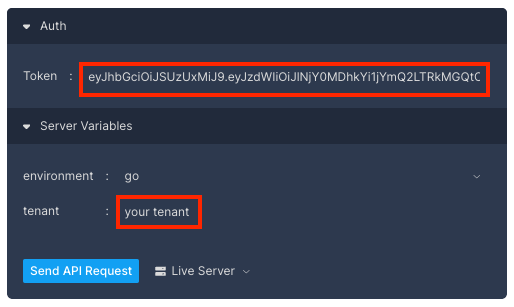
Token response
All sign-in endpoints and POST /refresh-token return the same response body:
| Field | Description |
|---|---|
accessToken |
JWT to send as Authorization: Bearer {accessToken} |
accessTokenExpireDate |
Date-time when the access token expires |
refreshToken |
JWT to request a new access token from POST /refresh-token. The same token comes back on refresh — it is not rotated. null while two-factor authentication is pending |
refreshTokenExpireDate |
Date-time when the refresh token expires. null while two-factor authentication is pending |
mfaRequired |
Deprecated — use mfaStatus. true when mfaStatus is CONFIGURED or REQUIRED |
mfaStatus |
Two-factor status of the user: CONFIGURED, REQUIRED, AVAILABLE or NOT_AVAILABLE. See Check the sign-in response |
uuid |
UUID of the signed-in user |
The service writes null fields as null; it does not omit them. refreshToken and refreshTokenExpireDate are null while two-factor authentication is pending.
Login Widgets
Standard login (email/password)
These login widgets allow login with username and password and retrieve a standard login token.
```production http { “method”: “POST”, “url”: “/{tenant}/auth/sign-in-email”, “baseUrl”: “https://go.api.gourban.services/v1”, “body”: { “email”: “your email”, “password”: “your secret password” } }
### Login with API key

These login widgets allow login as API client with `clientId` and `clientKey`.

```production http
{
  "method": "POST",
  "url": "/{tenant}/auth/sign-in-api-client",
  "baseUrl": "https://go.api.gourban.services/v1",
  "body": {
    "clientId": "your client id",
    "clientKey": "your secret client key"
  }
}
Token behavior for API clients
- Multiple active tokens per client: Signing in more than once with the same API client (same
clientId/clientKey) issues new tokens without invalidating previously issued ones. All issued access and refresh tokens remain valid simultaneously — a new sign-in does not revoke earlier sessions. - Sharing credentials across services: Using the same API client credentials from several backend services, each maintaining its own token cache and authenticating independently, is a supported pattern. When services serve different user journeys, domains, or purposes — or require different permissions — we recommend creating a separate API client (with distinct credentials) per service, but this is optional and up to your integration design.
User OTP login - phone number and code
Endusers can also log in with their phone number and a one-time-code (OTP) sent to their phone that they need to enter to log in. This method will also provision a fresh user if the phone number is not yet associated with an existing user.
1. Request an OTP code per phone number
```production http { “method”: “POST”, “url”: “/{tenant}/front/customers/create-or-sign-in-with-phone-number”, “baseUrl”: “https://go.api.gourban.services/v1”, “body”: { “phoneNumber”: “your phone number”, “branchId”: “home business unit the user belongs to” } }
See [Create or sign in with phone number](../reference/user-api.yaml/paths/~1customers~1create-or-sign-in-with-phone-number/post) for details.

Depending on your tenant's configuration, it might be necessary to provide a signature to prevent foreign sign-ups, DDoS attacks and replay attacks.
See [Signature](/docs/#signature) for details how to calculate the signature on the client-side.

#### 2. Enter OTP code and authenticate

Retrieve the one-time-code (OTP) sent to your phone number and enter it in the request body.

```production http
{
  "method": "POST",
  "url": "/{tenant}/auth/sign-in-phone-number",
  "baseUrl": "https://go.api.gourban.services/v1",
  "body": {
    "phoneNumber": "your phone number",
    "code": "the OTP code you received"
  }
}
See Sign in with phone number for details.
User OTP login - email code
Endusers can also log in with their email address alone and a one-time-code (OTP) sent to their email address that they need to enter to log in. This method will also provision a fresh user if the email address is not yet associated with an existing user.
1. Request an OTP code per email address
```production http { “method”: “POST”, “url”: “/{tenant}/front/customers/create-or-sign-in-with-email-code”, “baseUrl”: “https://go.api.gourban.services/v1”, “body”: { “email”: “your email address”, “branchId”: “home business unit the user belongs to” } }
See [Create or sign in with email code](../reference/user-api.yaml/paths/~1customers~1create-or-sign-in-with-email-code/post) for details.

Depending on your tenant's configuration, it might be necessary to provide a signature to prevent foreign sign-ups, DDoS attacks and replay attacks.
See [Signature](/docs/#signature) for details how to calculate the signature on the client-side.

#### 2. Enter OTP code and authenticate

Retrieve the one-time-code (OTP) sent to your email address and enter it in the request body.

```production http
{
  "method": "POST",
  "url": "/{tenant}/auth/sign-in-email-code",
  "baseUrl": "https://go.api.gourban.services/v1",
  "body": {
    "email": "your email address",
    "code": "the OTP code you received"
  }
}
See Sign in with email code for details.
Two-factor authentication (MFA)
Users who sign in with email and password can protect their account with a second factor: a time-based one-time code from an authenticator app. The 2FA endpoints are part of the Authentication API and act on the signed-in user. Send them with Authorization: Bearer {accessToken}, using the access token from the sign-in response.
Check the sign-in response
After every email/password sign-in, check mfaStatus in the token response. Two values mean that 2FA is pending, and each needs a different next step:
CONFIGURED— the user has 2FA set up. The access token works only forPOST /user/2fa-code-validate. Ask for the current code and continue with Validate a 2FA code.REQUIRED— the tenant enforces 2FA and the user has not set it up. The access token works only for the 2FA calls. Continue with Set up 2FA.2fa-code-validatefails until 2FA is enabled for the user.AVAILABLEorNOT_AVAILABLE— sign-in is complete.
While 2FA is pending, do not use the access token as the session token. All other API calls reject it, for example with 0005. The response also has no refresh token. Keep the access token only until the 2FA step is complete.
Only POST /sign-in-email returns CONFIGURED or REQUIRED. Every other sign-in endpoint returns NOT_AVAILABLE.
Validate a 2FA code
Ask the user for the current code from their authenticator app and send it with the accessToken from the sign-in response:
```production http { “method”: “POST”, “url”: “/{tenant}/auth/user/2fa-code-validate”, “baseUrl”: “https://go.api.gourban.services/v1”, “headers”: { “Authorization”: “Bearer {accessToken}” }, “body”: { “code”: “the code from the authenticator app” } }
The response is a [token response](#token-response) with a new access token and a new refresh token. The new access token works for all API calls that the user has access to. Replace the tokens from the sign-in with these tokens and use them from now on.

See [Validate 2FA code](../reference/auth-user-api.yaml/paths/~1user~12fa-code-validate/post) for details.

### Set up 2FA

Send all setup calls with the access token of the signed-in user. For a user with `mfaStatus: REQUIRED`, that is the access token from the sign-in response.

1. Ask the user for their password and call [POST /user/2fa-secret](../reference/auth-user-api.yaml/paths/~1user~12fa-secret/post) with body `{"password": "..."}`. The password is checked like a sign-in, so a wrong password counts towards the sign-in failure lockout. The response contains:
   - `secret` — the shared secret, for users who type it into their authenticator app
   - `totpUrl` — an `otpauth://` URL that authenticator apps can import
   - `encodedQRCodeImage` — a QR code of the same URL, as a PNG. The value is Base64-encoded twice, so decode it twice

   If you only need the QR code, call [POST /user/2fa-qr-code](../reference/auth-user-api.yaml/paths/~1user~12fa-qr-code/post) with the same body instead. It returns the QR code as a PNG image. Call only one of the two: each call generates a new secret and invalidates the previous one.
2. Show the QR code, or the secret for manual entry, so the user can add the account to their authenticator app.
3. Ask the user for the code their app now shows and call [POST /user/2fa-enable](../reference/auth-user-api.yaml/paths/~1user~12fa-enable/post) with body `{"code": "..."}`. This confirms the setup and turns on 2FA. It also invalidates every refresh token of that user, so the client must sign in again afterwards. The next sign-in returns `mfaStatus: CONFIGURED`.

The secret gives access to the second factor. Only display it to the user; do not store or log it.

If the tenant has not enabled 2FA, `2fa-secret` and `2fa-qr-code` fail with `AUTH117`. Do not offer 2FA setup for such a tenant.

### Reset 2FA

If a user loses access to their authenticator app, an operator can reset 2FA with the Operations API endpoint `DELETE /customers/{id}/mfa`. See [Operations API Customers And Groups](/docs/operations-customers-groups.html).

## Refreshing tokens

An access token is short-lived. A user access token is valid for 5h by default. An access token from `POST /sign-in-api-client` is valid for 1h by default. Both are configurable per tenant. Use the refresh token to get a new access token without asking for credentials again.

```production http
{
  "method": "POST",
  "url": "/{tenant}/auth/refresh-token",
  "baseUrl": "https://go.api.gourban.services/v1",
  "body": {
    "refreshToken": "the refreshToken from your last sign-in or refresh"
  }
}
The response has the same shape as a sign-in response (see Token response) and contains a new accessToken. It returns the same refreshToken and the same refreshTokenExpireDate: the refresh token is not rotated, and a refresh does not extend its lifetime. A session therefore ends when the original refresh token expires (60h by default).
See Refresh token for details.
Recommended handling
- Store both tokens and both expiry dates from every sign-in and refresh response. Keep the refresh token in secure storage (for example the platform keychain on mobile, or a secret store on a server). Never log it or put it in a URL.
- Replace the stored refresh token with the
refreshTokenandrefreshTokenExpireDatefrom each refresh response, and use the newest values for the next refresh. Today a refresh returns the same values, but always storing what the response returns keeps your client correct if refresh tokens are rotated later. If a response has norefreshToken, keep the one you have. - Refresh ahead of expiry. Compare
accessTokenExpireDatewith the current time and refresh shortly before it passes, instead of waiting for a failed request. Allow a margin for clock skew. - Refresh once on an expired token. If a request that included an access token fails with
0001, the token has expired: refresh and retry the request once. Do not retry in a loop. If the request had noAuthorizationheader, add the access token instead of refreshing. - Refresh once per session at a time. If several requests or threads detect an expired token together, let one of them refresh and have the others wait for the result. This avoids a burst of parallel refresh calls.
- Sign in again when the session has ended. If
refreshTokenExpireDatehas passed, orPOST /refresh-tokenreturnsAUTH104(expired) orAUTH109(invalid, for example after logout or enabling 2FA), the session can no longer be refreshed. Send the user to sign-in, or sign in again with the API client credentials.
See Error codes – Authentication & Authorization for the full list of authentication errors.
Logout
When a user signs out, call POST /logout with the refresh token of that session and delete both tokens from local storage.
Logout invalidates only that refresh token. Other sessions of the same user stay active, and the access token stays valid until its exp, so delete it on the client as well.
```production http { “method”: “POST”, “url”: “/{tenant}/auth/logout”, “baseUrl”: “https://go.api.gourban.services/v1”, “body”: { “refreshToken”: “the refreshToken of the session to end” } }
See [Logout](../reference/auth-user-api.yaml/paths/~1logout/post) for details.

## Error handling

The most common authentication errors and how to handle them:

| Code | Meaning | What to do |
|------|---------|------------|
| `0001` | Access token missing or expired | Token missing: send `Authorization: Bearer {accessToken}`. Token expired: [refresh the token](#refreshing-tokens) and retry the request once |
| `AUTH005` | Invalid bearer token in the `Authorization` header | Send a valid `Bearer {accessToken}` header |
| `0005` | The token has no access to this API | Use a token of a user or API client that has access to this API. After a sign-in with 2FA pending, [complete 2FA](#two-factor-authentication-mfa) first |
| `0007` | Authorization could not be established | Retry |
| `AUTH101` | Email and password don't match | Ask the user to re-enter their credentials; do not retry automatically |
| `AUTH102`, `AUTH119` | Phone or email code doesn't match | Ask the user to re-enter the code |
| `AUTH103`, `AUTH122` | Phone or email code has expired | Request a new code |
| `AUTH104` | Refresh token has expired | Sign in again |
| `AUTH108` | Email address not verified | Ask the user to confirm the verification email; retrying does not help |
| `AUTH109` | Refresh token is invalid — the session was ended by logout, by enabling 2FA, or by an operator | Sign in again; do not retry |
| `AUTH110` | Repeated sign-in failures, **or** an invalid two-factor code | On 2FA: ask the user to re-enter the code. Otherwise: contact support |
| `AUTH111`–`AUTH113` | User temporarily blocked after repeated sign-in failures | Wait before retrying |
| `AUTH222` | User is blocked | Contact support |
| `AUTH210` | API client id and key don't match | Check `clientId` and `clientKey`. The service answers the same code for an unknown client and for a wrong key |
| `AUTH227` | Sign-in temporarily disabled by the tenant | Wait and retry |
| `AUTH117` | Two-factor authentication is not enabled for the tenant | Do not offer 2FA setup for this tenant |

See [Error codes – Authentication & Authorization](/docs/error-codes.html#authentication--authorization) for the full list.

Some errors carry a numeric suffix that marks the endpoint that raised them, for example `AUTH104.1` from `POST /refresh-token` and `AUTH104.2` from `POST /logout`. Match on the code prefix, not on the whole value.

## Most relevant APIs

All endpoints below are in the [Authentication API](/reference/auth-user-api.yaml), except where noted.

| Task | Endpoint |
|------|----------|
| Sign in with email and password | [`POST /sign-in-email`](../reference/auth-user-api.yaml/paths/~1sign-in-email/post) |
| Sign in as API client | [`POST /sign-in-api-client`](../reference/auth-user-api.yaml/paths/~1sign-in-api-client/post) |
| Request a phone OTP (User API) | [`POST /customers/create-or-sign-in-with-phone-number`](../reference/user-api.yaml/paths/~1customers~1create-or-sign-in-with-phone-number/post) |
| Sign in with phone OTP | [`POST /sign-in-phone-number`](../reference/auth-user-api.yaml/paths/~1sign-in-phone-number/post) |
| Request an email OTP (User API) | [`POST /customers/create-or-sign-in-with-email-code`](../reference/user-api.yaml/paths/~1customers~1create-or-sign-in-with-email-code/post) |
| Sign in with email OTP | [`POST /sign-in-email-code`](../reference/auth-user-api.yaml/paths/~1sign-in-email-code/post) |
| Sign in with a social provider | [`POST /social-login`](../reference/auth-user-api.yaml/paths/~1social-login/post) |
| Exchange an OpenID code | [`POST /user/openid-token-exchange`](../reference/auth-user-api.yaml/paths/~1user~1openid-token-exchange/post) |
| Set a password from a reset code | [`POST /set-password/{code}`](../reference/auth-user-api.yaml/paths/~1set-password~1{code}/post) |
| Refresh tokens | [`POST /refresh-token`](../reference/auth-user-api.yaml/paths/~1refresh-token/post) |
| Log out | [`POST /logout`](../reference/auth-user-api.yaml/paths/~1logout/post) |
| Get 2FA secret | [`POST /user/2fa-secret`](../reference/auth-user-api.yaml/paths/~1user~12fa-secret/post) |
| Get 2FA QR code | [`POST /user/2fa-qr-code`](../reference/auth-user-api.yaml/paths/~1user~12fa-qr-code/post) |
| Enable 2FA | [`POST /user/2fa-enable`](../reference/auth-user-api.yaml/paths/~1user~12fa-enable/post) |
| Validate 2FA code | [`POST /user/2fa-code-validate`](../reference/auth-user-api.yaml/paths/~1user~12fa-code-validate/post) |
| Get the tenant's public key | [`GET /public-key`](../reference/auth-user-api.yaml/paths/~1public-key/get) |

## Verifying token signatures

Access tokens and refresh tokens are JWTs signed with `RS512` (RSA with SHA-512). Every tenant has its own RSA key pair, so a token issued for one tenant does not verify with another tenant's key. Verify a token when your backend receives it from a client, or when you want to read its claims and be sure they were issued by the Wunder Platform.

### 1. Get the public key

```production http
{
  "method": "GET",
  "url": "/{tenant}/auth/public-key",
  "baseUrl": "https://go.api.gourban.services/v1"
}
The endpoint needs no authentication. Response:
{
  "publicKey": "MIIBIjANBgkqhkiG9w0BAQEFAAOCAQ8AMIIBCgKCAQEAtNBuvLgunie7f4m0aGpF..."
}
publicKey is the Base64 encoding of the X.509 SubjectPublicKeyInfo (SPKI) structure in DER form — a PEM public key without the -----BEGIN PUBLIC KEY----- / -----END PUBLIC KEY----- lines and without line breaks.
Fetch the key once and cache it; it does not change between requests. Keep one cached key per tenant if you work with several tenants.
See Get public key for details.
2. Verify the token
- Decode the Base64
publicKeyinto an RSA public key. - Verify the token signature with that key, and accept only the
RS512algorithm. Do not trust thealgvalue in the token header on its own. - Reject the token if the
expclaim is in the past. - Reject the token if the
tenantclaim does not equal your tenant identifier.
The payload also carries sub, the UUID of the user.
Signature verification proves that the platform issued the token and that it has not been changed. It is done locally, so it cannot tell whether a session was ended in the meantime; the platform stays the authority on whether a token is accepted for API calls.
Java (jjwt)
byte[] der = Base64.getDecoder().decode(response.getPublicKey());
PublicKey key = KeyFactory.getInstance("RSA").generatePublic(new X509EncodedKeySpec(der));

Claims claims = Jwts.parser()
    .sig().clear().add(Jwts.SIG.RS512).and() // accept RS512 only
    .verifyWith(key)
    .build()
    .parseSignedClaims(token) // checks the signature and exp
    .getPayload();

if (!"your-tenant".equals(claims.get("tenant", String.class))) {
    throw new JwtException("Token was issued for another tenant");
}
Node.js (jsonwebtoken)
const crypto = require('crypto');
const jwt = require('jsonwebtoken');

const key = crypto.createPublicKey({
  key: Buffer.from(publicKey, 'base64'),
  format: 'der',
  type: 'spki',
});

// checks the signature and exp, and allows only RS512
const claims = jwt.verify(token, key, { algorithms: ['RS512'] });

if (claims.tenant !== 'your-tenant') {
  throw new Error('Token was issued for another tenant');
}
Converting the key to PEM
For tools that need a PEM file, wrap the value in the PEM header and footer and break it every 64 characters:
{
  echo "-----BEGIN PUBLIC KEY-----"
  echo "$PUBLIC_KEY" | fold -w 64
  echo "-----END PUBLIC KEY-----"
} > tenant-public-key.pem